
We heard you want to cancel your Netflix subscription... Let's stop right there.
Why would you want to do such a crazy thing? Are you really sure that you want to lose access to all that incredible content? After all, cord-cutting is definitely cheaper than cable TV, and we guarantee that there are lots of high-quality Netflix originals you haven't watched yet.
But okay, fine. You still want to cancel Netflix? Don't say we didn't warn you, but we'll show you how in this article. Keep reading to find out more.
How to Cancel Your Netflix Subscription on the Web

Let's first consider how to cancel your Netflix account using your Netflix account portal in a browser.
Just follow the step-by-step instructions below:
- Navigate to Netflix.com in your browser.
- Enter your login credentials.
- If applicable, click on the primary user's name.
- Click on the small arrow in the top right-hand corner of the screen.
- Select Account.
- Scroll down to the Membership and Billing section.
- Locate the Cancel Membership button and click on it.
- Confirm your choice by marking the checkbox and clicking on Finish Cancelation.
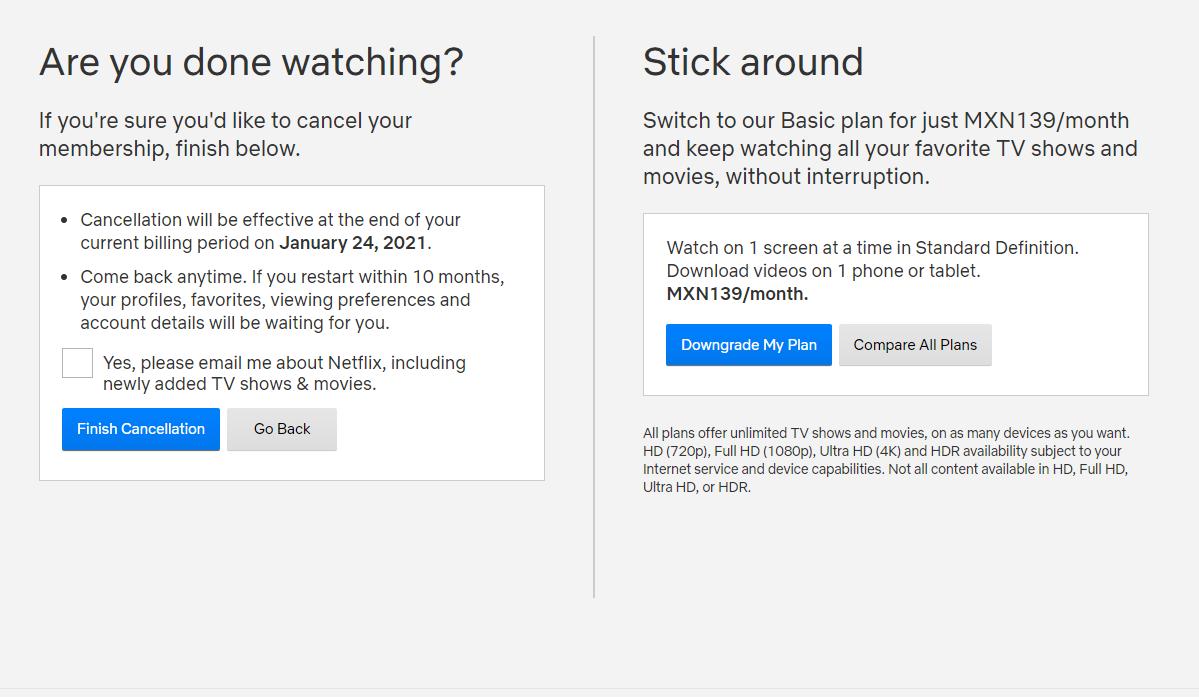
Remember, you can also use this screen to downgrade your plan if you just want to save some money rather than outright cancel your subscription.
How to Cancel Netflix Using the Mobile App
You can also use the mobile app to cancel your Netflix membership—though the app throws you out to your mobile browser to complete the process.
Let's have a look at the steps you need to take:


- Open the Netflix app on your Android or iOS device.
- Tap on the More tab in the lower-right corner of the screen.
- Find Account in the menu and tap on it.
- You will now be moved into the browser. From here, the process is similar to using a computer.
- Scroll down to the Membership and Billing section.
- Tap on Cancel Membership.
- Mark the checkbox and confirm your cancelation.
Note that you will still be able to access the Netflix app once your plan is no longer active, but you will not be able to watch any content.
How to Cancel Netflix Using iTunes
You can subscribe to Netflix directly through iTunes on iOS. Ergo, you can also cancel your plan from within Apple's app.
Use these instructions to work through the process:
- Open the Settings app on your iOS device.
- Scroll down and tap on iTunes & App Store.
- Tap on your Apple ID at the top of the window and enter your login details if required.
- Tap on View Apple ID in the new window.
- Select Subscriptions from the list of menu options.
- Find Netflix in the list and tap on it.
- Choose Cancel Subscription and then Confirm.
If you follow this approach, you do not need to log into the main Netflix account portal to cancel your plan.
What About Netflix DVD Plans?
You can use any of the processes outlined in this article to also cancel your Netflix DVD plan. There will be a Cancel Netflix DVD button directly under the Cancel Membership button on the web interface and you will see it listed on your list of iTunes plans if it's active.
What Happens After You Cancel Netflix?
Your subscription will terminate at the end of the next billing cycle. Remember, you can resume your membership at any time, you don't even need to create a new account.
The cancelation process is the same if you are still within the 30-day trial period. If you don't cancel within the period, Netflix will bill you automatically at the end of the month.




0 Comments