
Need to change a user password in Windows 10? You can do this through the Settings app, but it's much faster to change a password through the Command Prompt.
Even if you're new to text commands on Windows, changing the user password with the net user command is simple. We'll show you how to change a Windows 10 password using the command line with this handy method.
Use the Net User Command to Change a Windows Password
To change another Windows user's password via the command line, you need administrator privileges. See how to get admin rights on Windows if you aren't using an admin account already.
Also, keep in mind that this method only works for local accounts in Windows 10. It won't work if you use a Microsoft account to sign into Windows; you'll need to change the password using Microsoft's web account management page instead.
Now, here's how to change passwords via CMD using net user:
- Open an administrator Command Prompt. To do this, type cmd into the Start menu, then right-click on the Command Prompt entry and choose Run as administrator.
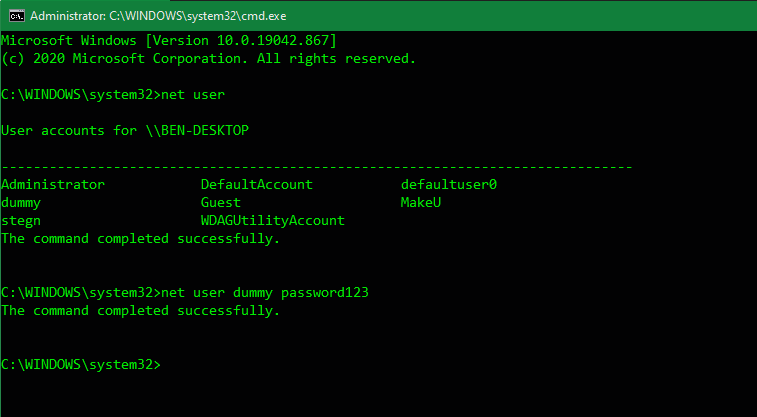
- Type the following net user command and press Enter to list all the users on your system. Take note of the account name you want to change the password for:
net user - To change the password, type the net user command shown below, replacing USERNAME and NEWPASS with the actual username and new password for the account. If the username is more than one word, you'll need to place it inside quotes, as shown:
net user USERNAME NEWPASSnet user "USER NAME" NEWPASS - After you press Enter to run this command, you'll see a message that it completed successfully. Now you can use the new password to log into this account, just like you had changed it via graphical interfaces.
If you see an Access denied message when you try this, make sure that you started the Command Prompt as an Administrator. Standard users can't change the password for other users.
Using Net User With Extra Privacy
You might want to prevent people around you from seeing the new password that you type. Thus, for more privacy, you can use a slightly different command to prevent the new password from appearing plainly onscreen.
Type net user USERNAME * (replacing USERNAME with the actual username) and Windows will ask you to type a new password twice. However, the passwords don't appear as you type, making sure anybody nearby won't see it.
If you've lost your administrator password, follow our tips for resetting a lost Windows admin password.
Change Your Windows Password More Conveniently
Now you now how to use the net user command to change passwords in Windows. It's a quick way to change passwords without sorting through menus, plus you can change multiple passwords in quick succession.
Give it a try next time you need to change a user password.





0 Comments