
Linux commands are a great way of interacting with the system using the terminal. However, sometimes it can take a while to finish the task at hand. This forces users to wait for a considerable time or spawn a new shell altogether.
Luckily, you can run Linux commands in the background by following some simple methods. The rest of this article illustrates some of these methods.
1. Add an Ampersand After Your Command
The easiest way to run a Linux background command is to add an Ampersand (&) symbol after the command. For example, if you start the gedit text editor from your terminal, you can not use the shell until you close the editor. However, when you add an extra & to your command, you'll be able to use the shell immediately.
gedit &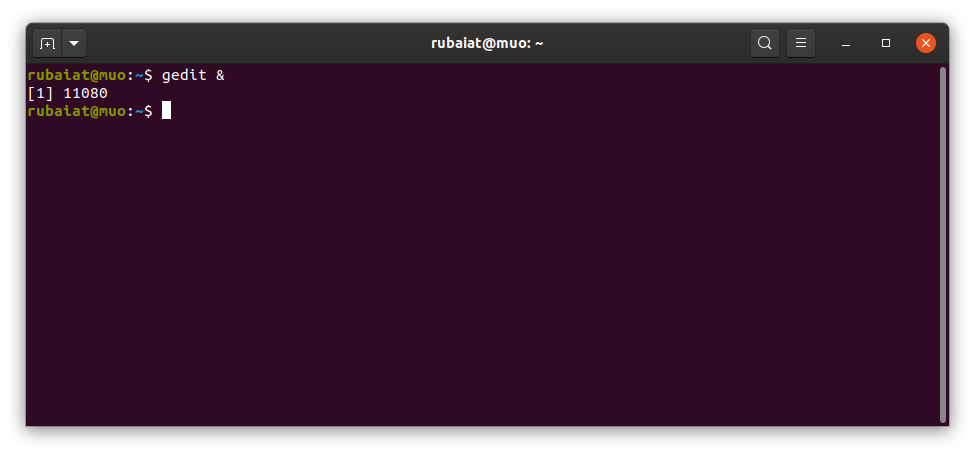
2. Use bg to Send Running Commands to the Background
Sometimes you run a command only to find out it takes much longer to finish. You can easily send these commands to the background by hitting the Ctrl + Z keys and then using the bg command. Ctrl + Z stops the running process, and bg takes it to the background.
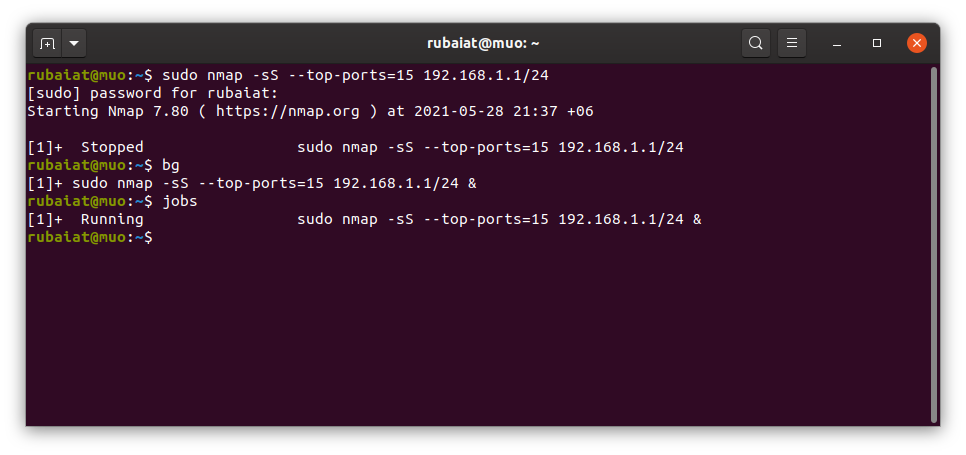
You can view a list of all background tasks by typing jobs in the terminal. Use the fg command to get back to the running task.
3. Send Commands to the Background With nohup
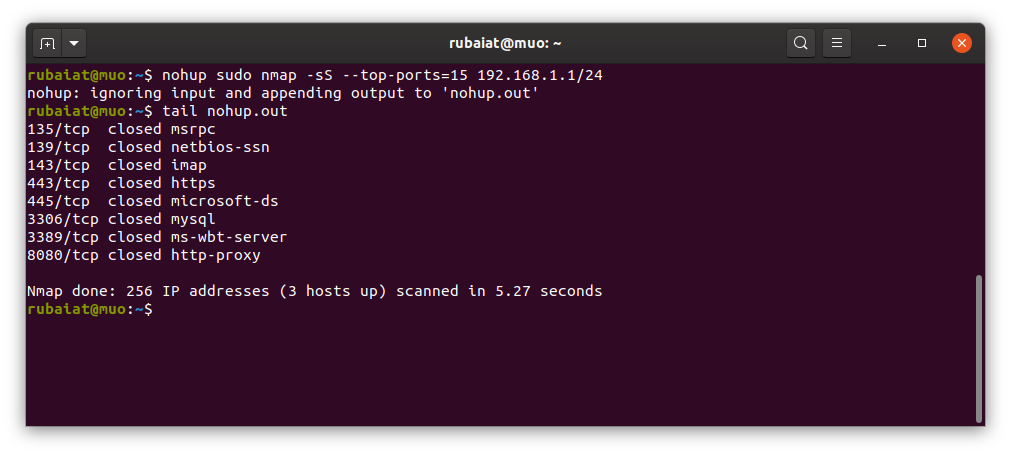
The nohup command in Linux allows admins to run terminal commands that are immune to HUP or Hang Up signals. You can run Linux commands in the background using nohup.
The below example runs an Nmap port scan in the background.
nohup sudo nmap -sS --top-ports=15 192.168.1.1/24One key benefit of nohup is that your commands will run even if you exit the shell. Moreover, it generates log files of the execution. Look for nohup.out in the current directory or inside $HOME.
4. Run Background Commands Using System Redirects
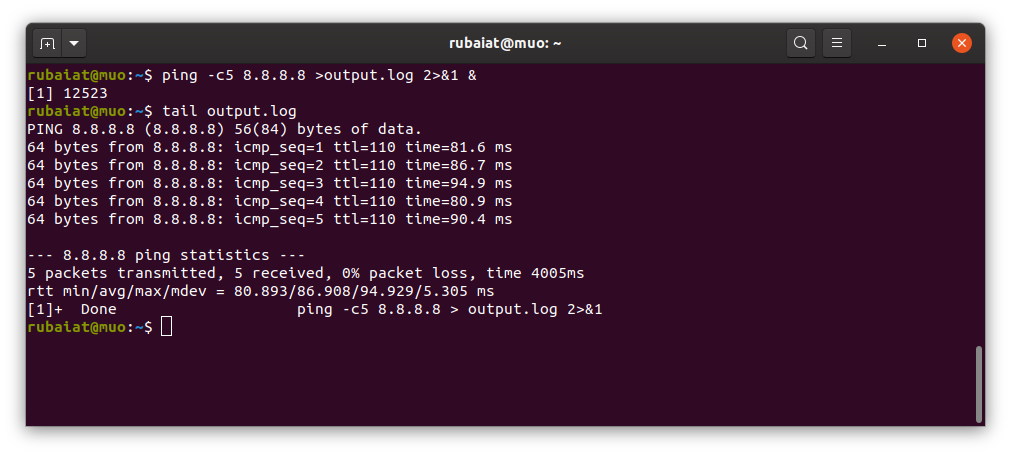
You can also run background commands in Linux using system redirects. For example, if you run the below ping command, your shell will run it in the background and immediately give the terminal prompt back.
ping -c5 8.8.8.8 >output.log 2>&1 &Here the output of the ping command is redirected to the output.log file. You can replace it with /dev/null if you want to discard the result. The 2>&1 tells bash to redirect any errors to the same file. The final & signals bash to run this command in the background.
5. Set Linux Commands to the Background Using disown
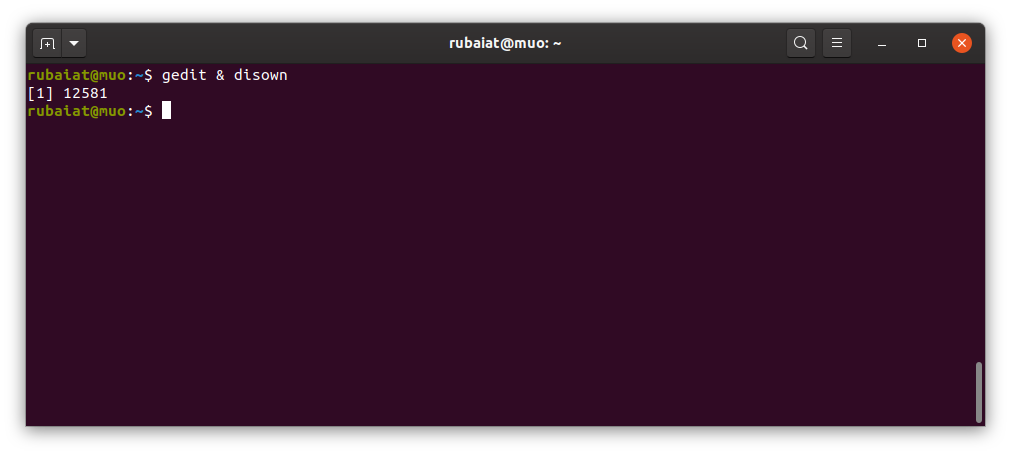
The disown command in Linux makes it easy to run commands in the background. First, you need to send the task in the background using the & operator. Then, type disown to detach it from your shell.
gedit &
disown
One major advantage of disown is that, like nohup, the system won't kill your task when you close your shell or log out.
6. Run Linux Commands in the Background Using Tmux
Tmux is a powerful multiplexer that allows us to run multiple terminal sessions within a single window. Learning tmux is an excellent choice for people who are unfamiliar with it. Tmux makes running background commands in Linux effortless.
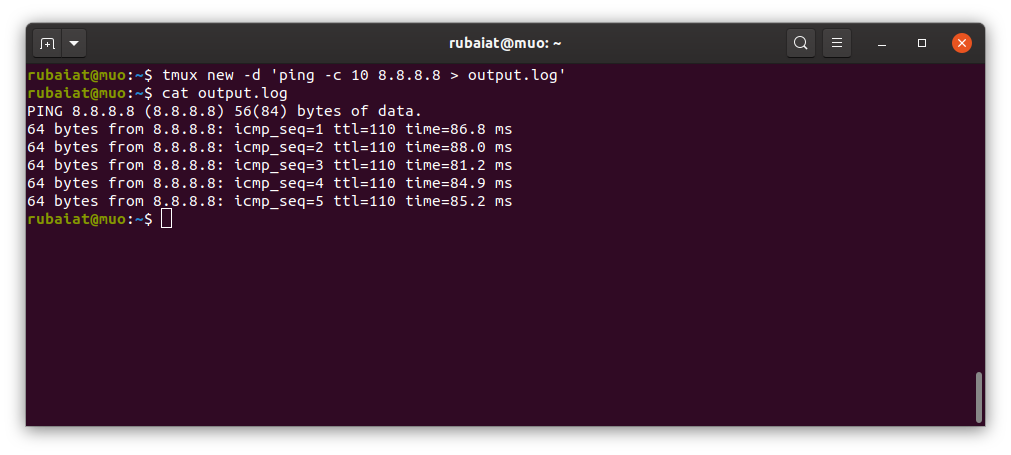
tmux new -d 'ping -c 10 8.8.8.8 > output.log'When you run the above tmux command, it will execute the ping command in a separate shell and keep it in the background. You can execute any Linux command in the background using this method.
Leave Your Linux Commands in the Background
Having the ability to run commands in the background makes system management more productive for admins. You can background your tasks in several ways. Bash features like the & and Ctrl + Z are convenient, but the system will kill the background job when the shell closes. On the other hand, tools like nohup and disown keep your command running even when you log out or terminate the shell.
If you leave your programs in the background for a long time, they may become zombie processes if they're not coded properly. These processes can slow down the system significantly. So, make sure to identify and kill zombie processes every once in a while.




0 Comments