
Using keyboard shortcuts can improve your productivity as it’s faster to press two or three keys than to search for a feature through a list or menu. You can use keyboard shortcuts for your email accounts, file folders, image editing programs, and more.
If you can’t use the keyboard shortcuts advantage on your Windows 10 device, we have put together some quick fixes in this guide.
1. Run Keyboard Troubleshooter
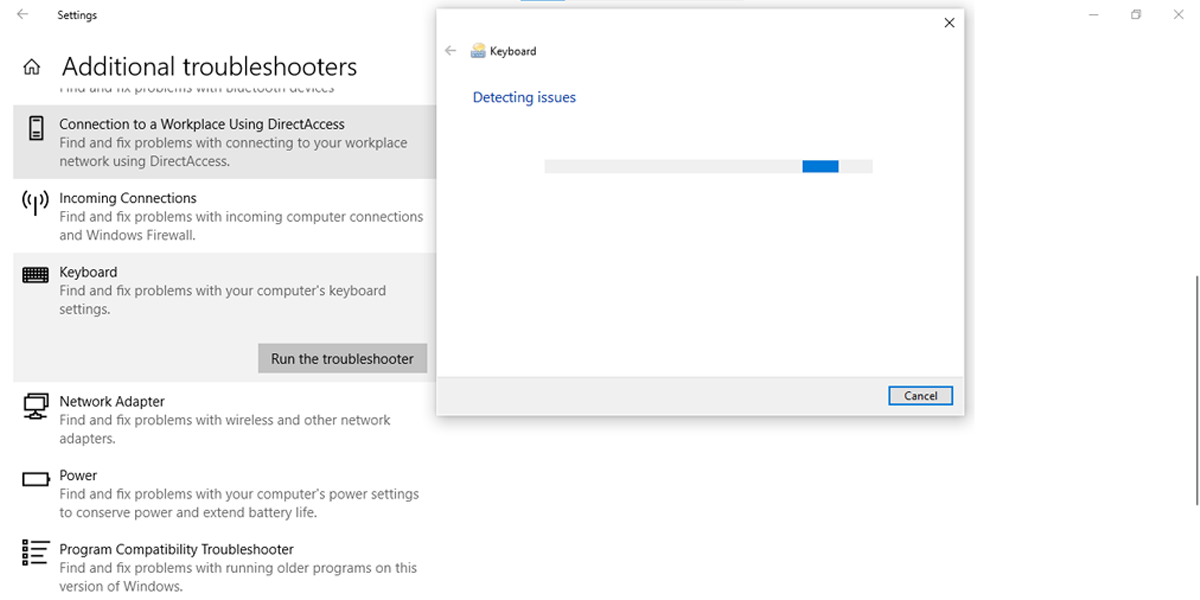
A quick and simple solution to fix your problem is to use Windows 10 Keyboard Troubleshooter. Here is how you can do it:
- Click Start, then head to Settings > System > Update & Security.
- Click Troubleshoot > Additional troubleshooters.
- Under Find and fix other problems, select Keyboard.
- Select Run the troubleshooter to start the scan.
2. Enable Sticky Keys
Keyboard shortcuts could fail to work if you don’t press the key combinations at the same time. If you are having difficulties pressing multiple keys at the same time, you should enable Sticky Keys.
This Windows 10 feature allows you to press the shortcut keys one after another. Here is how to enable it:
- Click Start, then head to Settings > Ease of Access.
- From the Interaction section, select Keyboard.
- Turn on the toggle below Use Sticky Keys.

If you want to turn on or off Sticky Keys using a keyboard shortcut, check the box next to Allow the shortcut key to start Sticky Keys. This will allow you to turn it on or off by pressing Shift five times.
3. Turn On Windows 10 Key Hotkeys
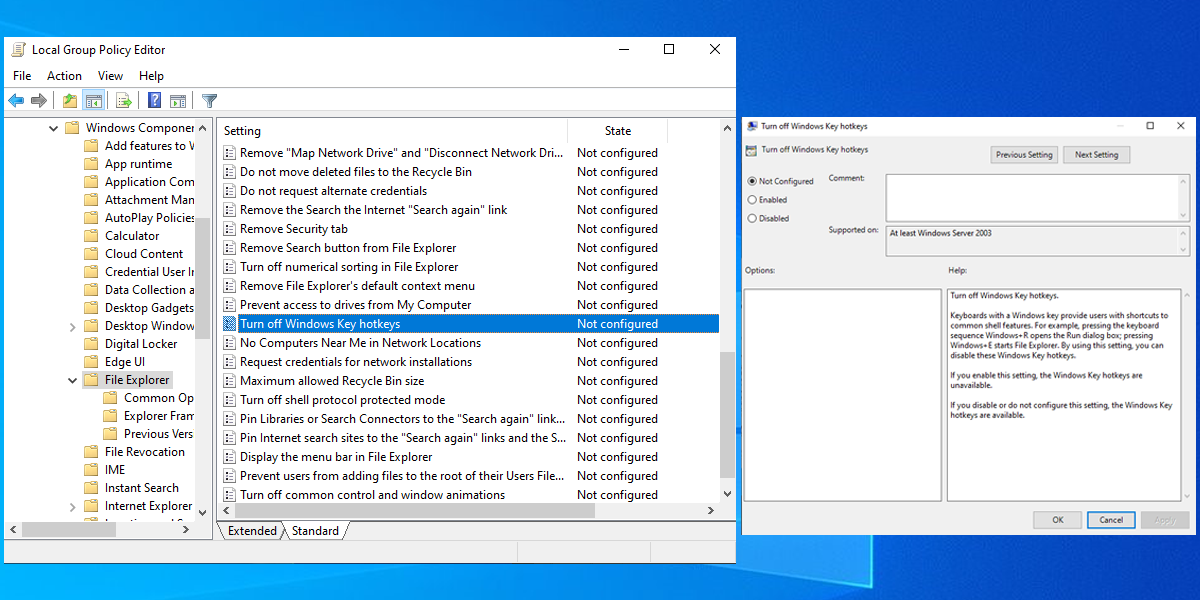
- Press Windows Key + R to open the Run dialog, type gpedit.msc into the dialog box, then press Enter to access the Local Group Policy Editor.
- Head to User Configuration > Administrative Templates > Windows Components > File Explorer.
- Open Turn off Windows Key hotkeys.
- Select Disabled or Not Configured.
- Click Apply to save the new settings.
4. Check Human Interface Device Service
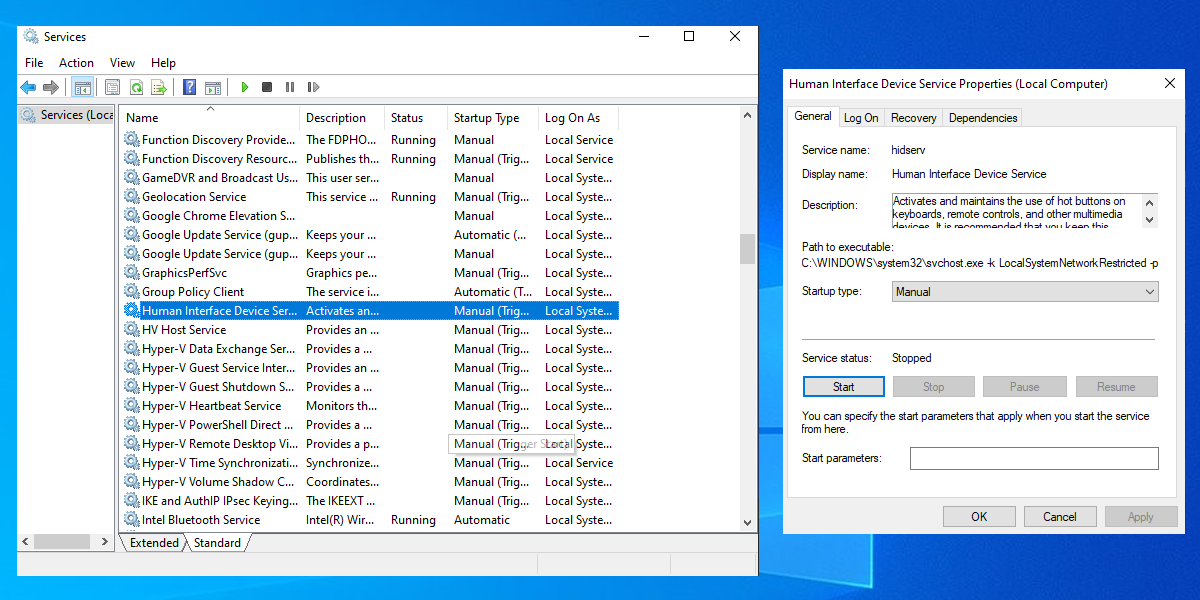
If you have difficulties using keyboard shortcuts on your Windows 10 device, you should check Human Interface Device Service. Here is how you can do it:
- Press Windows Key + R to open the Run dialog.
- Type services.msc and press Enter.
- Right-click Human Interface Device Service > Start.
- If it is already running, click Restart.
- Right-click it again and select Refresh.
Make Your Keyboard Shortcuts Work Again
If you restart your PC or laptop, connect your USB keyboard through another port, and the shortcuts are still not working, you need to try some troubleshooting methods.


0 Comments