
Google Earth is a fantastic tool that lets you explore the world from the comfort of your home. While it's available as a desktop and mobile app, you can actually use Google Earth directly within your web browser.
We're going to show you how to use Google Earth online without downloading it, then highlight some of its best features.
How to Use Google Earth in a Browser
Accessing Google Earth in your browser is incredibly simple. It's great because you don't have to download anything, and you can use it on any computer. Just go to google.com/earth.
At first, Google Earth was only available via the company's own Chrome browser. However, as of March 2020, you can now access in more browsers like Firefox, Opera, and Edge. Check if your browser is up-to-date, but this should happen automatically.
You will need to enable hardware acceleration in your browser before you can use Google Earth. It's likely that this is already enabled.
To double check in Chrome:
- Input chrome://settings/ into the address bar.
- Click Advanced at the bottom of the page.
- Below the System header, enable Use hardware acceleration when available.
The first time you launch Google Earth in your browser, you'll get a short overview that details the top five things to try. After that, the world is your oyster.
How to Navigate Google Earth in a Browser
You might feel a tad overwhelmed when you first launch Google Earth, looking at the entire globe.
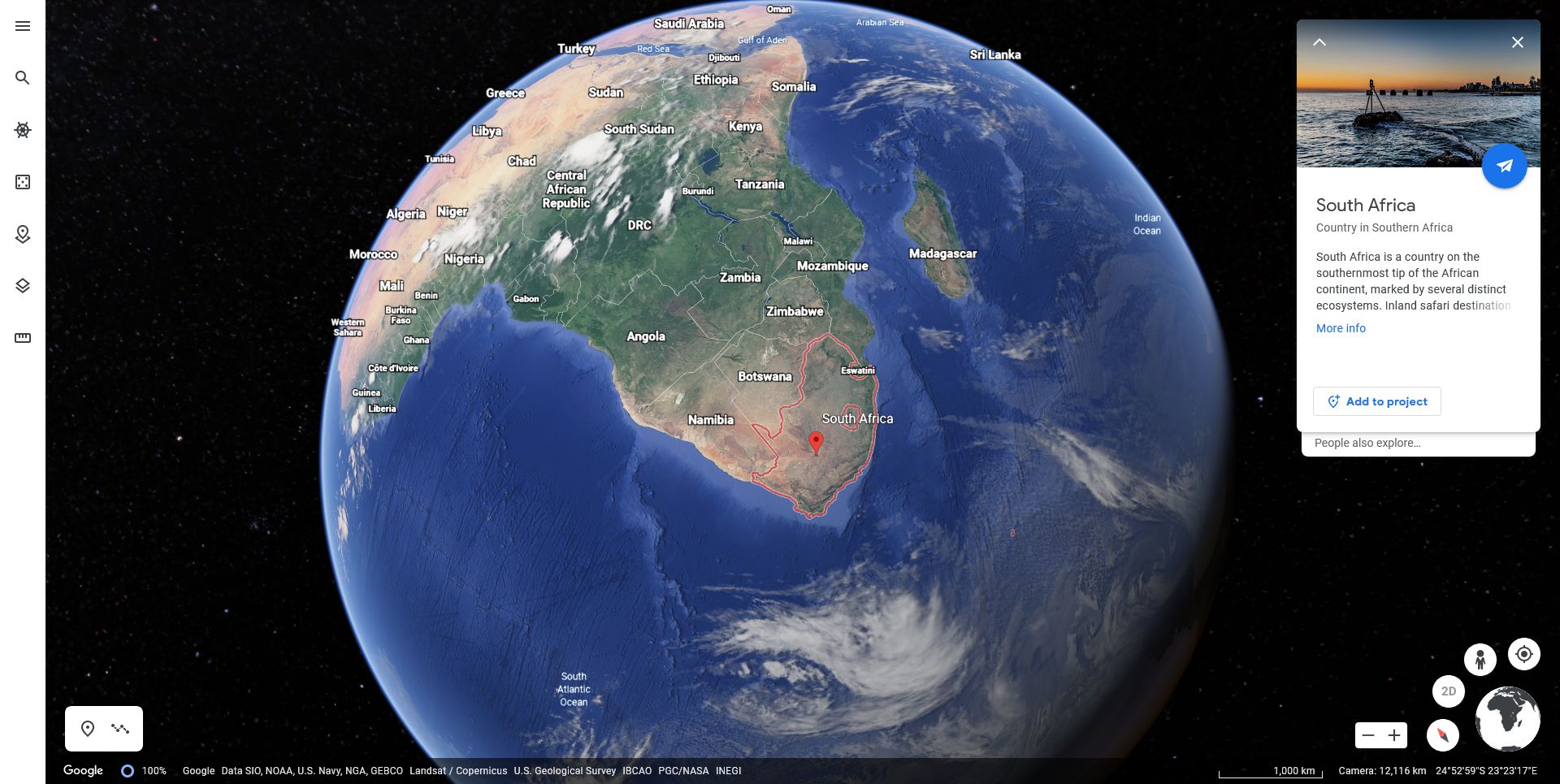
To begin, click and drag the globe to spin it. Hold Shift at the same time and the view will tilt. Next, scroll your mouse wheel to zoom in and out. Alternatively, you can use the plus and minus icons at the bottom.
As you get closer to the Earth, you'll see the names of countries appear. Click these to open an information box about that location, which you can also click to expand. This same functionality applies at a local level for things like cities, landmarks, and parks.
To go somewhere specific, click the search icon on the left. You can search by place name, address, longitude and latitude, and more generally (e.g. "Museums in Paris"). Of course, you'll probably want to get a satellite view of your house on Google Earth.
Keyboard Shortcuts for Google Earth in a Browser
When you become more familiar with Google Earth, you can use keyboard shortcuts to navigate quicker. Here are some of the most useful:
- ? - Show a list of keyboard shortcuts
- / - Search
- Page up/down - Zoom in/out
- Arrow keys - Pan the view
- Shift + arrow keys - Rotate the view
- O - Move between 2D and 3D view
- R - Reset the view
- Space - Stop movement
The Best Google Earth Browser Features
Google Earth is packed full of great features. Here are some of the best that you should try.
1. Take a Virtual Tour With Voyager
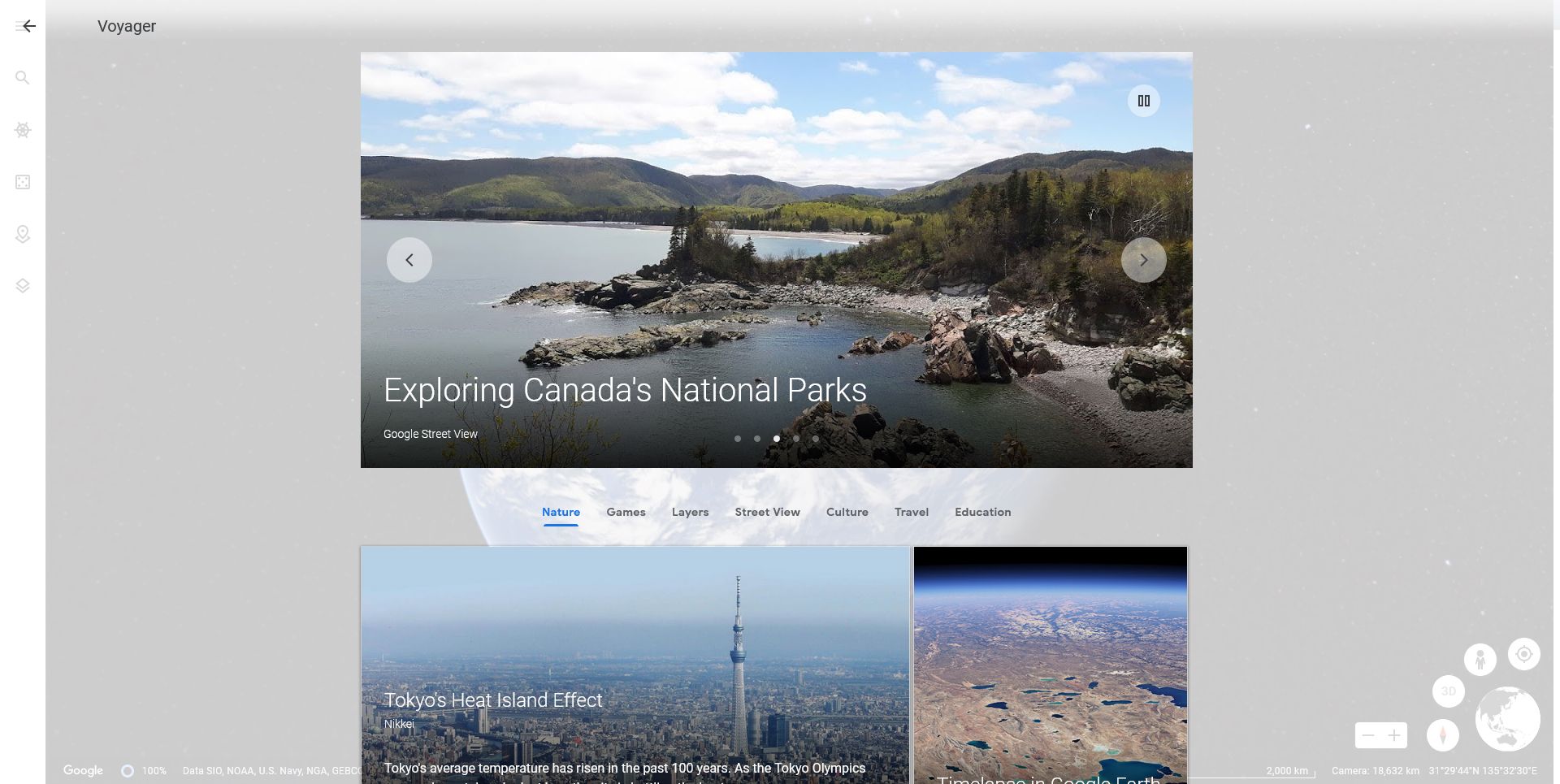
Voyager is the name of a feature that lets you go on virtual tours. Google dubs them as "map-based stories", which you can progress at your own rate as you explore locations and discover information.
Some of the tours you can take include India's railways and the history of volcanoes. There are also interactive quizzes for you to test your knowledge on topics like animal calls and archaeological sites.
To access Voyager, click the helm icon on the left. This will open the Voyager overlay so you can select your tour.
Here are our recommendations for the best Voyager tours to take.
2. Explore the World in 3D
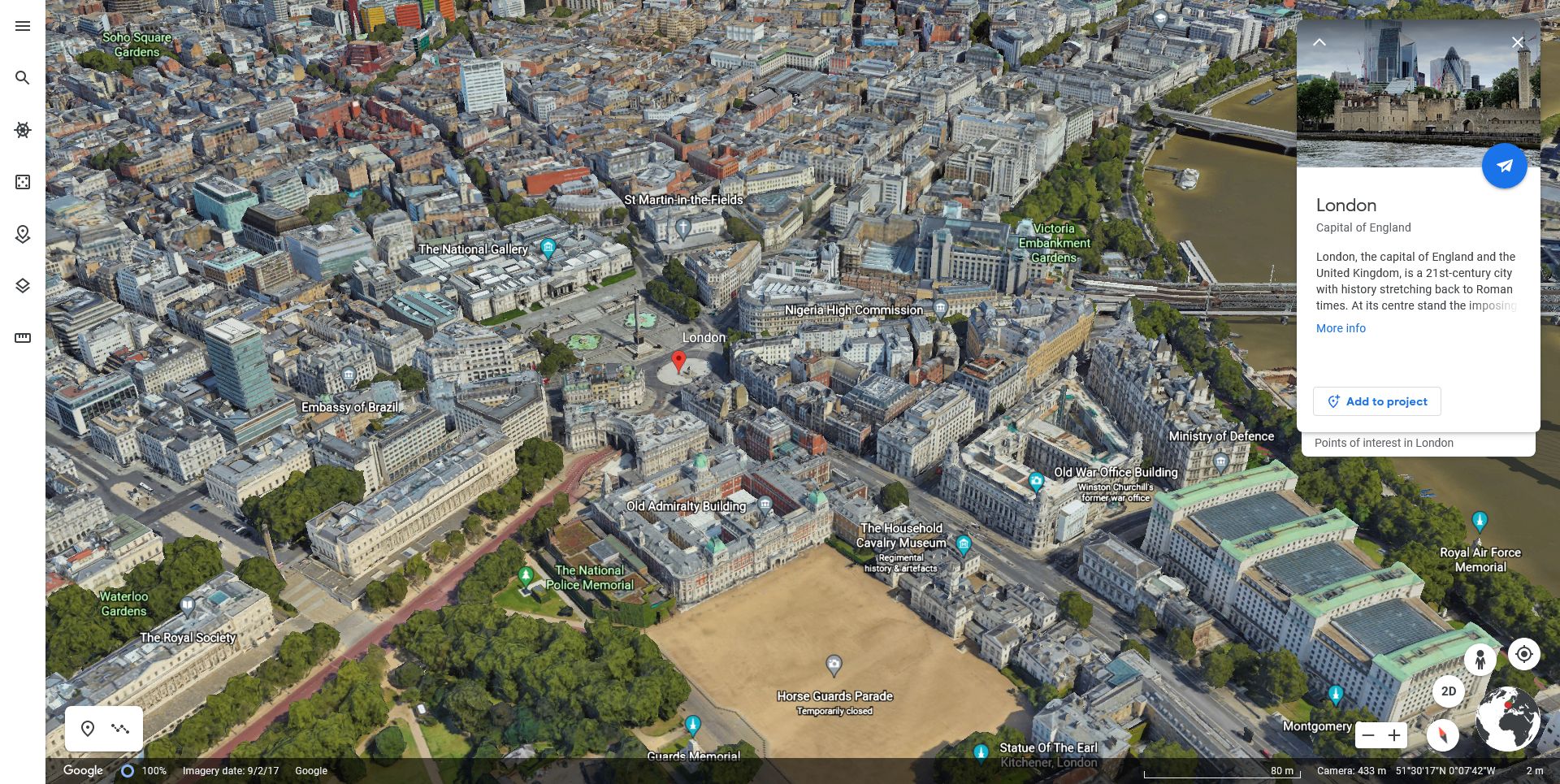
While it's all well and good exploring the planet in a flat view from above, Google Earth can go one step further so you can check things out in 3D.
You can see if this feature is activated. Click the Map Style icon on the left and enable Turn on 3D Buildings. While you're here, you might also like to enable the cool Turn on Animated Clouds feature.
3D isn't available everywhere—only where Google has captured the high-detail imagery necessary. It's more likely to be available in high population areas or for notable landmarks.
To view somewhere in 3D, hold down Shift and click and drag to change the perspective.
If you ever want to quickly switch back and forth between 3D and 2D, press the O key. Alternatively, click the 3D button in the bottom right, which you can click again to change back to 2D.
3. Create a Project
Projects are a way to collect together locations, alongside text, photos, and videos, to build a presentation, story, or customized map.
To begin, click the Projects icon on the left, then New project > Create project in Google Drive. First, click Untitled Project to input a name for your project and a description too if you desire.
Next, click New feature and choose from Search to add place, Add placemark, Draw line or shape, and Fullscreen slide. Feel free to experiment with these features because you can easily add and remove them.
You can also put things in your project as you explore Google Earth. All you need to do is click the Add to project button that appears in the information boxes.
Finally, you can invite others to see and collaborate on projects. To do this, with the Projects pane open, click the Share project icon at the top.
How to Change Google Earth Settings
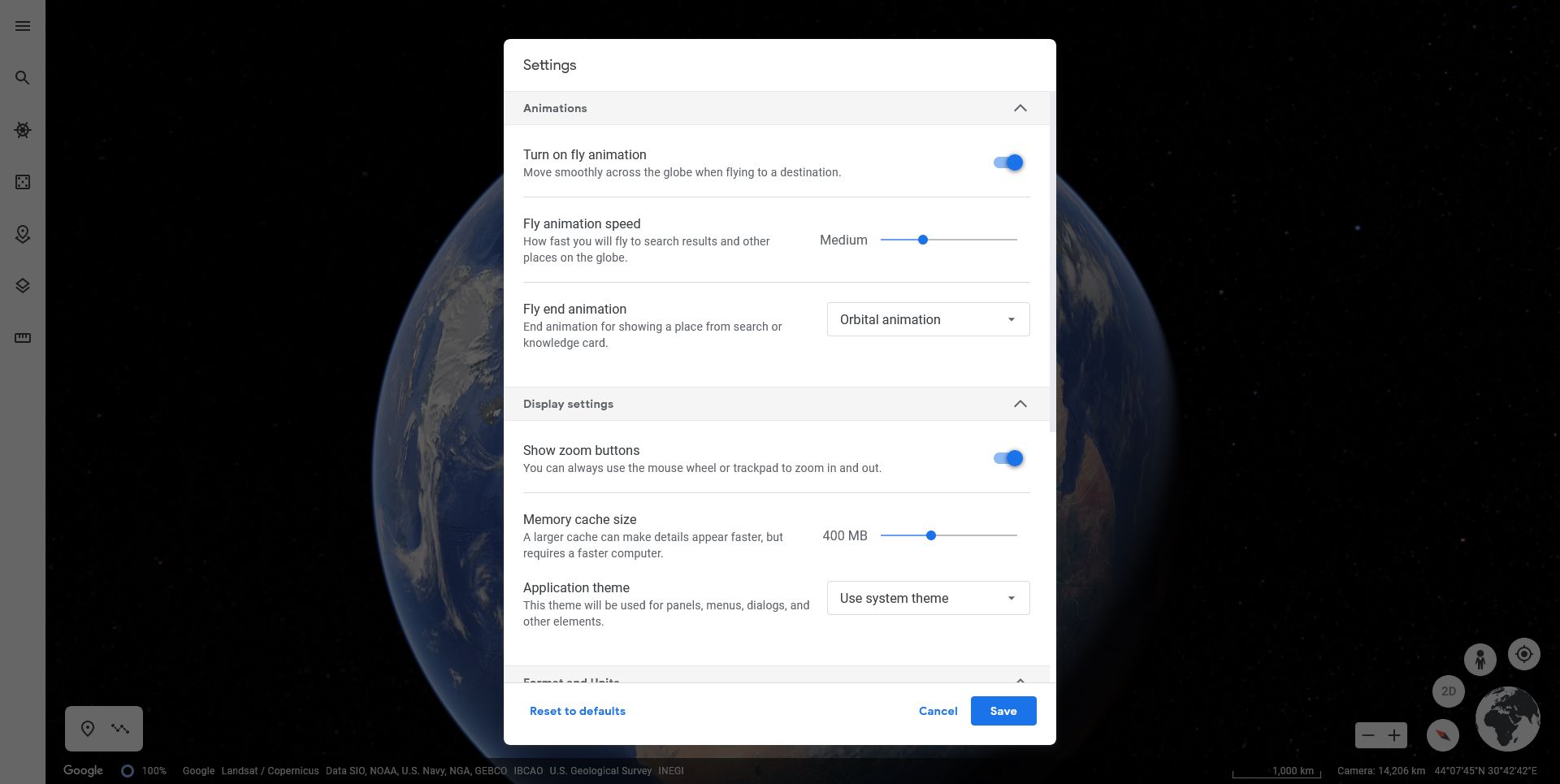
You might want to customize your Google Earth settings to tweak animations, adjust unit measurements, and more.
To do this, click the menu icon on the left and click Settings. The settings are split by the headers Animations, Display settings, Format and Units, and General settings.
If your computer is struggling to display Google Earth correctly, you should disable Turn on fly animation and reduce the Memory cache size.
Google will automatically determine your preferred format and units by your location. However, you can manually change both the Units of measurement and Latitude/Longitude formatting.
If you ever change the settings and want them to go back to how they first were, simply click Reset to defaults at the bottom of the window.
How Often Is Google Earth Updated?
Now you know how to use Google Earth in your browser, it's time to get exploring every nook and cranny that our beautiful planet has to offer.
You might also be wondering how often Google Earth gets updated. Simply look at the bottom information bar to see when the images you're viewing were captured. The more significant a location is, the more chance it has of being updated regularly.


0 Comments