
By opening unwanted websites in new tabs, Chrome often frustrates its users. Hidden malware might be to blame, but the issue could also be in your browser settings.
Let's take a look at eight different ways to stop websites from opening on Chrome.
1. Block Popups and Redirects
Using redirects, websites can send traffic to their desired location, which can be an affiliate page, a landing page, or a promotional offer. As a result, you'll be redirected to multiple pages every time you visit such a website. It may also be responsible for the opening of unwanted websites and pop-ups.
Luckily, Chrome allows you to block such activity by disabling the settings for allowing websites to use pop-ups and redirects. To do so, follow these steps:
- Click the three vertical dots in the top-right corner to access Settings.
- In the left sidebar, click Privacy and Security settings.
- Click on Site Settings and scroll down to Content settings in Additional Permissions.
- Click on Pop-ups and redirects.
- Check the circle for Don't allow sites to send pop-ups or use redirects.

Then scroll down to Customized behaviors and remove all websites from the Allowed to send pop-ups and use the redirects section. Avoid adding new websites in the future as well.
2. Change Search Settings in Chrome
You can prevent Chrome from opening unwanted websites at the same time by tweaking search settings. Even though it may not solve the entire issue, it allows you to control how many unwanted websites are opening at once.
Chrome opens every new pop-up or website in a new tab by default. Every time a new unwanted website opens in Chrome, it opens in a new tab. This gives viruses and bugs free rein to redirect you to different pages at once.
You can effectively limit Chrome from opening websites in new tabs unless you specify otherwise. So, all new websites will open in the same tab without consuming more than one.
To do that, go to the Chrome search bar and search for anything. Click the Settings icon in the top-right and select Search settings.
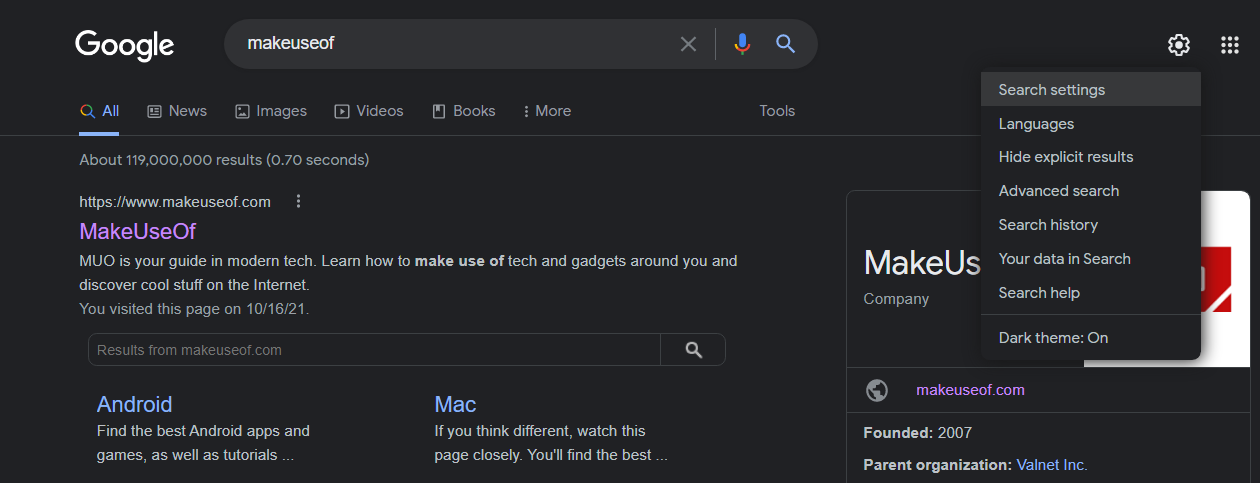
Scroll down to the bottom of the search settings page and uncheck the box for Open each selected result in a new browser window.
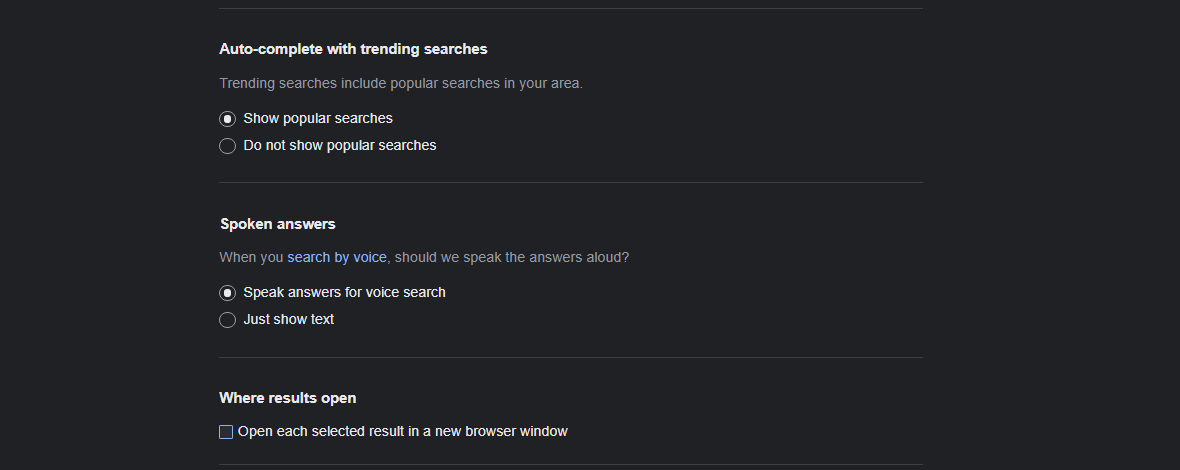
As such, if the problem is with anything else, it may also disrupt your browsing by opening unwanted websites replacing the one you clicked to visit. In that case, undo the change.
3. Disable Coupon Extensions
If you are only redirected to specific pages, such as shopping pages, you might be using a coupon or discount extension. Coupon extensions work by finding the most suitable coupon for your purchase, and may redirect you to another website or another page of the same website.
This could result in numerous unwanted websites being opened within seconds. Consider disabling all coupon and discount extensions you're using to make sure that isn't the case. You can disable extensions in Chrome by clicking on the three vertical dots in the top-right corner and navigating to More Tools > Extensions.
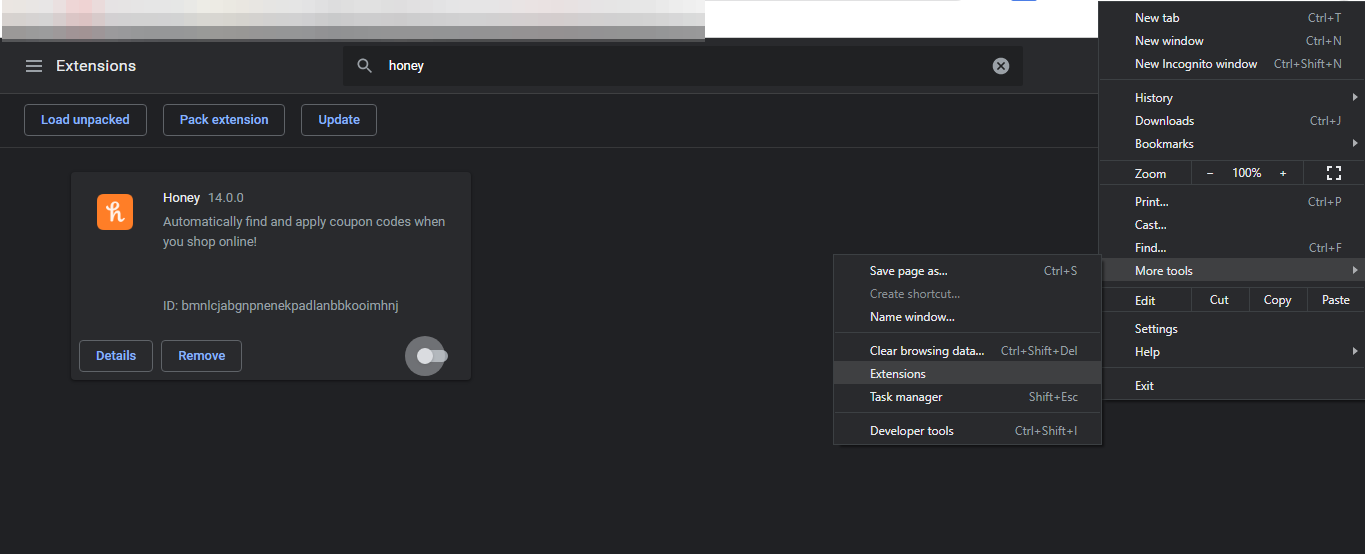
If disabling coupon's extension fails to yield any results, disable the ad-blocker extensions in Chrome.
4. Remove Ad-Blockers Extensions
Ad-blockers extensions prevent the visited pages from being overrun with advertisements. While very useful, there are downsides.
By filtering content, ad-blockers stop specific content from appearing on a webpage, directly interfering with your site's script.
Such interference can also result in unusual issues such as the one under discussion. To determine whether the issue results from ad blocking, disable them and see if the problem persists. If yes, proceed with the remaining fixes.
5. Block Notifications
Whenever you visit a new website, you are asked to allow receiving notifications from it. Unknowingly, you may have enabled notifications on a website that provides an insecure connection. These websites can redirect you to unwanted websites when you tap on their notifications.
Here is how you can rule out this cause by disabling the notifications:
- Go to Chrome's settings.
- On the left-sidebar, click Privacy and security settings.
- Head over to Site Settings.
- Go to Notifications Permissions.
- Check the circle for Don't allow sites to send notifications.

Then, scroll down and remove any suspicious websites from the list of websites Allowed to send notifications. Remove them all to avoid further distractions.
If the problem persists after blocking the notifications, you should scan the PC for PUPs or bugs interfering with Chrome's processing.
6. Removing PUPs With Cleanup Tool
Although you can use various anti-virus software for hunting down potentially dangerous files and software, Chrome also allows you to remove files that impede the function of your browser. You can do that with Chrome's Clean Up computer tool.
Here's how you do it:
- Navigate to Settings.
- On the left sidebar, navigate to the Advanced dropdown.
- Go to the Reset and clean up option.
- Click on Clean up computer and hit Find.

Chrome will scan your files for harmful software, and the time it takes to do so directly correlates with how much data you have on your computer. You can continue using Chrome while the cleanup is running in the background.
7. Clearing Cookies and Cache
If Chrome is still opening unwanted websites, you can clear Chrome's cookies and cache to negate any chances of cached data doing the harm.
Go to More Tools > Clearing browsing data and check all boxes except for Passwords and other sign-in data (to prevent losing saved passwords and sign-in information across different websites). Then, click Clear data.
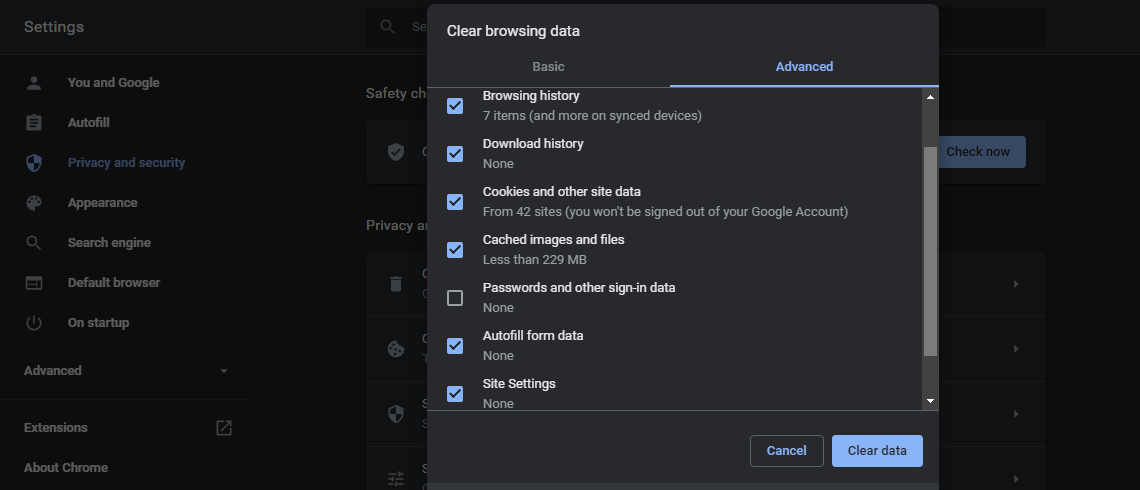
Clearing the cache often resolves most problems, but it doesn't mean it will fix this one. If this doesn't work, you can try resetting Chrome or uninstalling it as a last resort.
8. Reset or Reinstall Chrome
Once you've applied all other fixes, update Chrome to the latest version if it fixes the problem. In case that does not work, you can try resetting Chrome or reinstalling it. However, there is a downside to both methods.
Chrome's reset or reinstallation means giving it a fresh start, reverting all the changes to their defaults, and removing all your account information unless you have synced it earlier.
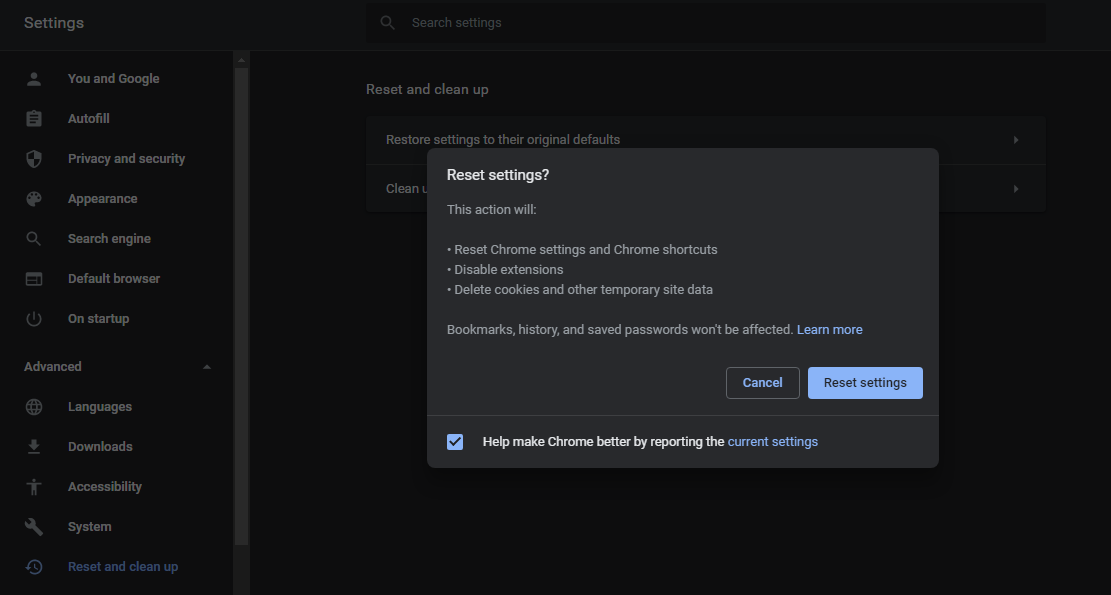
Reset Chrome by going to Settings > Advanced > Reset and clean up. Click on Restore settings to their original default and hit Reset settings.
Remove Chrome and all associated files properly before reinstalling to make sure nothing remains.
Stop Unwanted Websites Disrupting Your Work
Taking the above steps will stop unwanted websites from opening automatically. If your primary search engine changes to Yahoo or another search engine besides Google, you may encounter this issue frequently. You should revert to using Google as your primary search engine if that is the case.


0 Comments