
When your ISP first sets up your internet connection, it will also set up the default network settings for you. And with these default network settings comes a specific configuration, called the Domain Name System (DNS), which is critical for your online connectivity.
For most ISPs, though, security or privacy of your DNS isn’t much of a priority; this, however, leaves you susceptible to all kinds of security problems: DNS hijacking; cache poisoning, etc., are just a few examples that come to mind.
In this article, we’ll cover how you can get around this problem by changing the default DNS settings of your Windows 11. So let’s begin.
How to Change DNS Settings in Windows 11
A Domain Name System (DNS) translates human-readable domain names to IP addresses so that browsers can load the web pages on your screen. In most cases, when you get a new internet connection, your ISP sets one up for you.
However, apart from the default DNS server provided by your ISP, you have a slew of good options to choose from.
For instance, Google has been providing free DNS services since 2009, which they describe as an effort to make the web faster and more secure. Cloudflare and OpenDNS are also some of the best alternatives for a safer and faster DNS service. We've provided the IP addresses for the individual public DNS below.
To get started with the DNS switch, follow the steps below:
- Go to Windows Settings (Win + I) and navigate to Network & Internet.
- Select Advanced network settings.
- From there, click on the network adapter available under the Network adapters option. For instance, if you’re using an Ethernet connection, then select that. Similarly, choose Wi-Fi if you’re using internet over Wi-Fi.
- Click on the View additional properties.
- Now select the Edit button in front of the DNS server assignment.
- Under the Edit DNS Settings, click on Manual and choose the IPv4 or IPv6 setting.
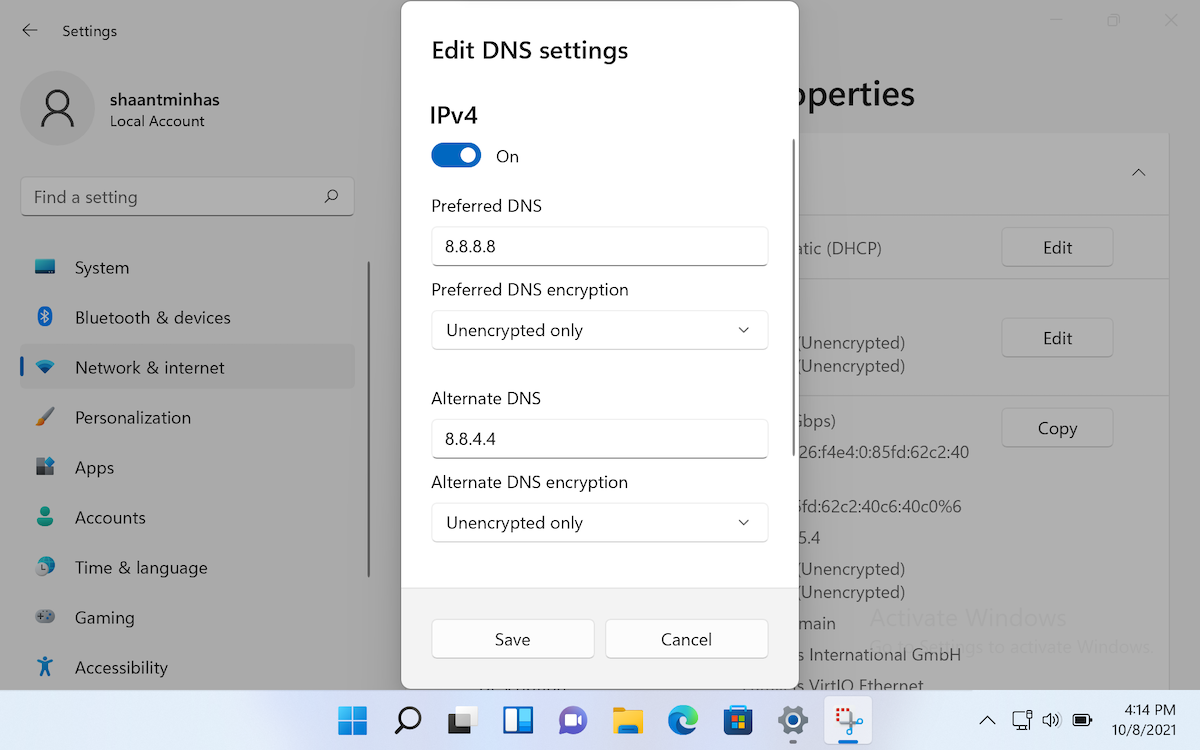
We’ve chosen the IPv4 setting for this example. Also, note that as soon you toggle on the IPv4, you’ll get a new set of empty fields to fill in. They are Preferred DNS, Preferred DNS encryption and alternate DNS.
Here are the DNS and alternate DNS numbers from Cloudflare, Google, and OpenDNS, that you can use for your new DNS server:
- Cloudflare: 1.1.1.1 and 1.0.0.1
- Google: 8.8.8.8 and 8.8.4.4
- OpenDNS: 208.67.222.222 and 208.67.220.220
In the above example, we've used Google's DNS. You can pick any DNS server that you'd like to go with, enter the numbers in the appropriate empty fields, and click on Save. In a few seconds, your Windows 11 DNS settings will be changed.
Changing the DNS Settings on Windows 11
The DNS is a critical component of the modern internet. And while ISPs do provide us with a default automatic DNS setup, you might want to take things into your own hands if you want better security. Using the simple method laid down above, you can change your DNS settings without any hassles, and keep your systems protected.




0 Comments